Reclaiming Two Bravia OLEDs: Debloating ACR Spyware, the Setupwraith Brick War Story, and Real-World Living-Room UX
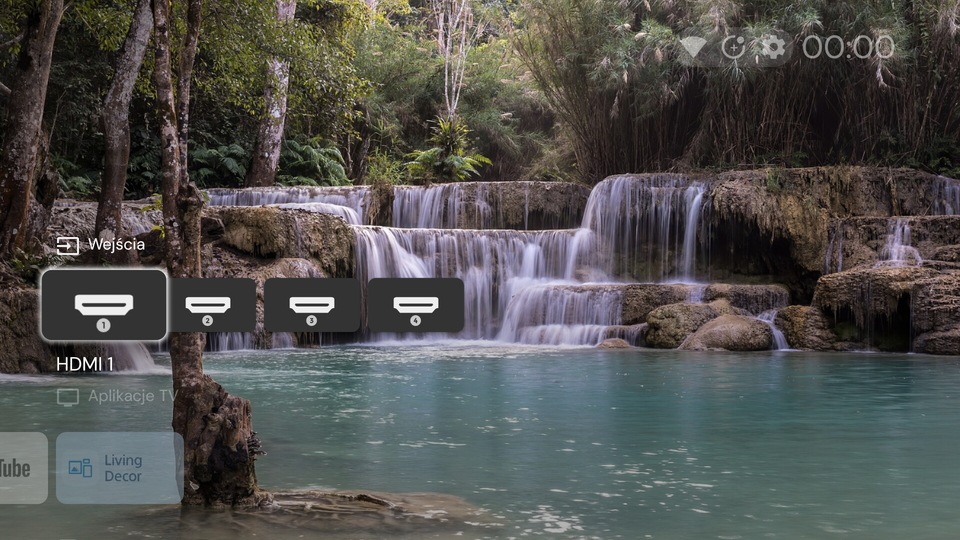
When you spend weeks migrating your entire digital life onto a self-hosted, 64-bit Raspberry Pi 5—running your own cloud, personal music streaming, photo library, and home automation behind a Pi-hole DNS sinkhole—you start seeing hardware through a very different lens.
You realize how much modern consumer tech treats you not as the owner of a machine, but as an ongoing telemetry asset to be monetized.
Nowhere is this contrast more glaring than in the living room.
Anchoring our living room is a 65-inch Sony Bravia XR-65A80L 4K OLED, with a sister 55-inch Sony Bravia XR-55A80L OLED down the hall. Physically, these displays are masterclasses in engineering: inky, absolute blacks, astonishing HDR contrast, and razor-sharp color rendition. But the moment you power them on, the stock Google TV firmware shatters that elegance:
- Eighty percent of the home screen is an unskippable billboard: Algorithmic recommendations, promotional trailers for streaming subscriptions we don't have, and sponsored banners crowding out our actual inputs.
- Background daemons sample what you watch: Automatic Content Recognition (ACR) services fingerprint video frames directly from the display buffer—even across external HDMI inputs—to phone home ad-targeting profiles.
- Dead weight on flash storage: Pre-installed hotel/B2B demo modes, diagnostic reporters, and—no joke—five distinct embedded Node.js runtimes sitting dormant on the system partition.
- The data that actually matters is invisible: When I walk into the living room during a cold European autumn, I don't care about the latest streaming spinoff. I want to know our Home Assistant Heating & Air Quality status—CO₂ levels, PM2.5 particulates, room temperatures, radiator states, and ventilation alerts in my home office and living areas. That data lived on my server, stranded in a browser tab.
I wanted our displays to act like true extensions of our self-hosted infrastructure: pristine, ad-free launchers, instant access to our Home Assistant environment, and a pure #000000 OLED screensaver that looks like an Omarchy terminal rice while physically turning off 98% of the panel's pixels.
Here is the engineering story of how we audited the TV telemetry, stripped 42 packages across two Bravia sets, survived an unexpected DNS-killing brick war story, compiled a custom 20 KB dependency-free Android companion APK, learned a humbling real-world UX lesson on daily living-room usability, and scaled the workflow to our second OLED using cost-optimized subagents.
The Anatomy of Modern TV Spyware: Auditing the Bravia Platform
Before touching a single system package on either television, I connected a laptop over ADB (192.168.1.58:5555 for the 65" and 192.168.1.19:5555 for the 55") to audit every installed package holding sensitive permissions (RECORD_AUDIO, CAMERA, and frame-capture privileges) using adb shell dumpsys package and appops.
Because both sets share Sony's Bravia XR platform running Android TV 12 (API 31), what we found went far beyond routine crash reporting:
1. Real-Time Frame Fingerprinting (ACR)
tv.samba.ssm&tv.samba.ssm.ui(Samba TV System Service): Samba TV is the poster child for Automatic Content Recognition (ACR). It does not merely log app launches; it periodically captures pixel hashes directly from the display pipeline to fingerprint movies, shows, and console games playing on screen—even across external HDMI ports—and uploads those fingerprints to build household advertising graphs.com.sony.dtv.videoframeserver: Sony's internal video frame server daemon hooked into the display compositing pipeline, ready to serve captured screen frames to downstream telemetry clients.
2. Camera, Proximity & Gestures
com.sony.dtv.sensingcamera.*,gestureapp,distancealert: A four-package suite dedicated to the optional Bravia Cam accessory for viewer distance warnings, gesture tracking, and presence sensing—running in the background even with no camera physically attached.
3. Continuous Telemetry & Ad Engines
com.sony.dtv.da.service&com.qterics.da.product: Qterics Device Analytics agents collecting fine-grained user interaction telemetry.com.sonyericsson.idd.agent: Sony IDD metrics collector.com.sony.dtv.usercontext&com.sony.dtv.lastaccess: Tracking which inputs, apps, and HDMI devices are activated and for how long.com.sony.dtv.promos,sonyselect,sonytab: Sony's internal promo carousels and ad banners.
4. Retail Demo & Hotel B2B Bloat
Perhaps the most absurd finding was the sheer volume of dormant commercial firmware left on consumer sets. We discovered 14 retail demo and hotel mode packages, including com.sony.dtv.b2b.hotelmode, b2b.prosettings, multiscreendemo, and five separate embedded B2B Node.js runtimes (com.sony.dtv.b2b.noderuntime.*) consuming CPU cycles and storage on living-room TVs.
Phase 1: The Golden Rule and the 42-Package Debloat
If you debloat an Android TV without a rollback mechanism, you are playing Russian roulette with expensive 4K displays.
Before modifying a single state bit, we instituted a strict backup-first rule: 1. Dump the full package list with paths (pm list packages -f). 2. Record system properties (getprop). 3. Pull all split APKs (base.apk + split_config.*.apk) of every user-installed streaming app to an offline backup directory. 4. Generate an automated restore.sh script using cmd package install-existing for system stubs and adb install-multiple for user APKs.
With our recovery harness in place, we uninstalled 42 packages for User 0 (adb shell pm uninstall --user 0 <pkg>):
- 5 User-Installed Streaming Apps: Disney+, Max, Canal+, TVP VOD, and Crunchyroll—instantly reclaiming ~450 MB of
/datastorage on the 65" set. - 5 Pre-Installed Streaming Stubs: Netflix (
com.netflix.ninja) and its partner stub (com.netflix.partner.ncm), Apple TV (com.apple.atve.sony.appletv), Sony Pictures Core, and YouTube Music. - 14 Spying, ACR, Telemetry & Promo Packages: Samba TV (
tv.samba.ssm*),videoframeserver, Qterics DA, Sony IDD,sonybugreportsys,sonyloglevelsettingsys,google.android.feedback,usercontext,lastaccess,promos,sonyselect, andsonytab. - 14 Retail Demo & Hotel / B2B Packages: All hotel mode services, pro-settings daemons, and all five embedded Node.js DRM runtimes.
- 4 Bravia Cam Packages: Gesture apps, distance alerts, and sensing camera services.
For voice input, we deliberately audited and preserved com.google.android.katniss (Google Assistant on TV) and com.sony.dtv.bleadvertiseservice. That allows the remote control's push-to-talk microphone button to execute voice searches inside SmartTube while killing continuous background listening.
Both TVs felt noticeably snappier. But our next step on the 65-inch set—replacing the home screen—triggered an unexpected crisis.
The "Setupwraith" War Story: How Disabling One Package Brickwar-Tested Our Ethernet
If you search Android TV debloating forums or Reddit, you'll find hundreds of guides confidently instructing users to run this standard one-two punch to replace the stock Google TV home screen with a custom launcher:
adb shell pm disable-user --user 0 com.google.android.apps.tv.launcherx
adb shell pm disable-user --user 0 com.google.android.tungsten.setupwraith
On a generic Android TV box or a Chromecast dongle, this cleanly disables Google TV's launcher and initial setup wizard.
So when one of our subagents executed those two commands on the Sony Bravia XR-65A80L, it seemed like routine business.
Then all hell broke loose.
Within six seconds of running those commands: 1. Video streams on YouTube and Twitch froze with network timeout errors. 2. The TV's network status icon flipped to a disconnected globe. 3. Every DNS lookup on the TV failed completely. 4. Even worse: hardwired Ethernet pings to the TV's static IP (192.168.1.58) dropped into a black hole.
A 65-inch OLED with a direct, hardwired Cat6 cable running into a managed switch had completely lost its network stack.
Why Did It Happen?
On Sony Bravia firmware, com.google.android.tungsten.setupwraith is not merely a post-factory setup assistant. Sony's underlying connectivity manager hooks into setupwraith to verify device provisioning state.
When setupwraith is disabled via the package manager, Sony's network provisioning watcher determines that the device has entered an unprovisioned or corrupted state. In response, it unbinds the active network interfaces, tears down DNS routes, and refuses to route IP packets—even over a physical Ethernet link!
Because ADB over TCP/IP was running over that very network interface, we were inches away from losing shell access entirely. Fortunately, the ADB daemon remained attached to the socket for a few seconds before the connection dropped, allowing us to re-enable both packages:
adb shell pm enable --user 0 com.google.android.tungsten.setupwraith
adb shell pm enable --user 0 com.google.android.apps.tv.launcherx
The moment setupwraith returned to life, the Ethernet link negotiated, DNS resolution popped back online, and local pings responded in < 1ms.
The Architectural Solution
The lesson was crystal clear: Never disable launcherx or setupwraith at the package manager level on Sony Bravia hardware.
Instead, we adopted the robust approach: 1. Install Projectivy Launcher (com.spocky.projengmenu), hands down the cleanest, most responsive Android TV launcher available. 2. Grant Projectivy's Accessibility Service permission: bash adb shell settings put secure enabled_accessibility_services com.spocky.projengmenu/.services.ProjectivyAccessibilityService adb shell settings put secure accessibility_enabled 1 3. Enable "Nadpisz bieżący launcher" (Override current launcher) in Projectivy's settings.
Projectivy intercepts the remote's KEYCODE_HOME at the accessibility event level, displaying its sleek, ad-free interface instantly. Meanwhile, Google's launcherx and setupwraith remain enabled in the background, keeping Sony's network provisioning state machine completely satisfied.
We hardened our deployment scripts to explicitly assert that setupwraith and launcherx remain enabled on every run. Disaster averted.
Phase 2: Building the 20 KB com.tvs.haomarchy Companion APK
With a pristine launcher running on the 65" OLED, we tackled our original vision: how do you show a live, authenticated Home Assistant Heating & Air Quality Dashboard on the TV without breaking usability?
Off-the-shelf Android TV tools like TvOverlay only support pushing static MQTT text badges or sensor pills; they cannot render an interactive Lovelace dashboard. Conversely, running a full web browser like Chrome or Firefox on a TV is an ergonomic nightmare: you have to launch it manually, it hogs hundreds of megabytes of RAM, and it covers the entire screen.
We needed a bespoke, native solution. So we built com.tvs.haomarchy—a lightweight, dependency-free companion APK compiled directly with CLI build tools (javac, aapt2, d8, zipalign, apksigner).
The total binary size? Just 20 KB.
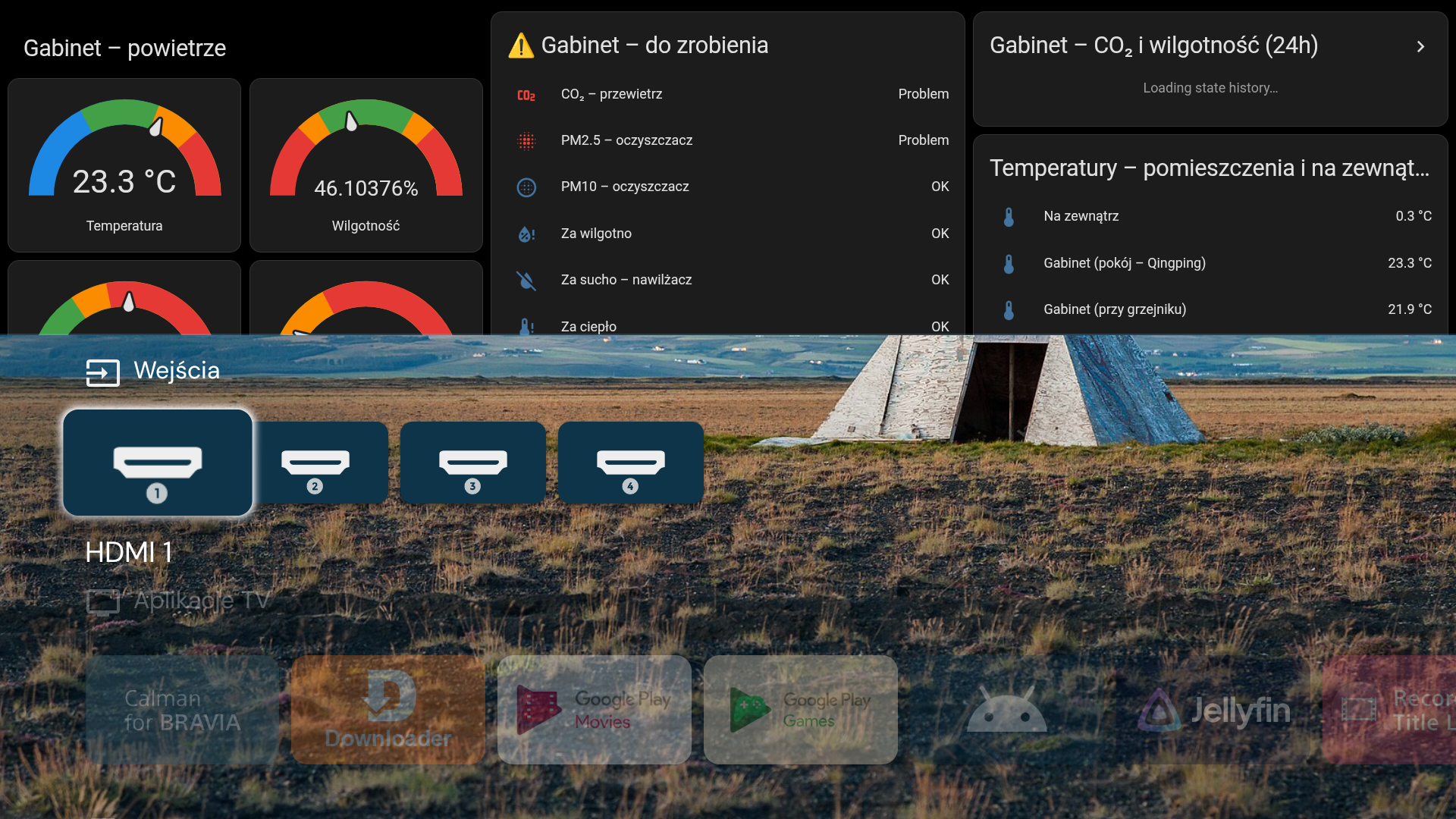
Here is how the three components work under the hood:
1. HeatingOverlayService.java: The Top 41% Dashboard
The initial component was a persistent foreground service that mounts a hardware-accelerated Android WebView into the window manager using TYPE_APPLICATION_OVERLAY.
- The "Top 41%" Geometry Rule: On a 1080p Android TV canvas, an overlay at 58% height covered Projectivy's top icon rows. Through pixel-by-pixel calibration, we dialed the height to exactly 41% (
442px). At442px, the dashboard occupied the top portion of the display, bounded by a subtle 1px#337dcfffTokyoNight cyan border. The remaining638pxleft Projectivy's Wejścia (HDMI 1–4) and Aplikacje TV rows (SmartTube,Jellyfin,Magenta TV,Twitch) completely unobstructed. - Never Steal Remote Control Focus: A classic failure mode with Android TV overlays is focus trapping: the
WebViewgrabs the D-pad focus, preventing you from clicking launcher tiles. We solved this with window layout flags:java WindowManager.LayoutParams params = new WindowManager.LayoutParams( WindowManager.LayoutParams.MATCH_PARENT, 442, // Exactly 41% of 1080p WindowManager.LayoutParams.TYPE_APPLICATION_OVERLAY, WindowManager.LayoutParams.FLAG_NOT_FOCUSABLE | WindowManager.LayoutParams.FLAG_NOT_TOUCH_MODAL | WindowManager.LayoutParams.FLAG_LAYOUT_IN_SCREEN, PixelFormat.TRANSLUCENT ); params.gravity = Gravity.TOP | Gravity.START;Because ofFLAG_NOT_FOCUSABLE, the remote control's D-pad always drove Projectivy Launcher underneath. - Auto-Hiding via
UsageStatsManager: The overlay only existed on the home screen. A lightweight 500ms poller queriedUsageStatsManager: the microsecond an app launched or the screensaver started, the overlay flipped toView.GONE. When pressingHometo return to Projectivy, it flipped back toView.VISIBLE. - Zero-Touch Auto-Login & Shadow-DOM Kiosk Injection: Home Assistant's Lovelace interface is built on nested Web Components with encapsulated shadow roots (
home-assistant→home-assistant-main→ha-panel-lovelace→hui-root). Our companion app injected authentication tokens directly intolocalStorage.setItem('hassTokens', ...)and traversed the shadow roots to inject a custom<style id="__tvKioskStyle">tag: ```javascript const root = document.querySelector('home-assistant') ?.shadowRoot?.querySelector('home-assistant-main') ?.shadowRoot?.querySelector('ha-panel-lovelace') ?.shadowRoot?.querySelector('hui-root');
if (root && !root.shadowRoot.getElementById('__tvKioskStyle')) { const style = document.createElement('style'); style.id = '__tvKioskStyle'; style.textContent = ha-top-app-bar-fixed, .header, app-toolbar { display: none !important; } #view { padding: 0px 8px !important; zoom: 0.64 !important; background: #000000 !important; }; root.shadowRoot.appendChild(style); } `` Withzoom: 0.64applied to#view, all three Lovelace columns—**Gabinet – powietrze** (CO₂, PM2.5 gauges), **⚠️ Gabinet – do zrobienia** (action alerts), and **Gabinet – CO₂ / Temperatury** (graph cards)—fitted cleanly side-by-side inside the442pxstrip on a pure#000000` background.
2. HeatingActivity.java: Interactive Full-Screen Mode
For deeper inspection or scrolling into secondary rooms, clicking the HA Heating & Omarchy tile in Projectivy's app row opened HeatingActivity. This launched the dashboard in a full-screen window (100% height) and mapped the TV remote's D-pad Up/Down keys to smooth scrolling:
@Override
public boolean onKeyDown(int keyCode, KeyEvent event) {
    if (keyCode == KeyEvent.KEYCODE_DPAD_DOWN) {
        webView.scrollBy(0, 180);
        return true;
    } else if (keyCode == KeyEvent.KEYCODE_DPAD_UP) {
        webView.scrollBy(0, -180);
        return true;
    }
    return super.onKeyDown(keyCode, event);
}
Pressing the remote's Back button returned smoothly to Projectivy Launcher.
3. OmarchyDreamService.java: The Omarchy OLED Screensaver
Leaving static pixels on an OLED panel is the cardinal sin of TV hacking. To eliminate burn-in risk entirely, we registered a custom Android DreamService as the system screensaver:
adb shell settings put secure screensaver_components com.tvs.haomarchy/.OmarchyDreamService
adb shell settings put secure screensaver_enabled 1
Inspired by Omarchy and minimalist terminal rice aesthetics, OmarchyDreamService operates under strict OLED-safety constraints: - Pure #000000 Canvas: 98%+ of the OLED panel's subpixels are physically unpowered and turned off. - Drifting Monospace Rain: A slow 24 FPS stream of terminal glyphs (01{}[]/>_#*+~:=) in TokyoNight/Catppuccin tones (#7dcfff cyan, #9ece6a green, #bb9af7 purple, #565f89 slate). - Drifting HUD Badge: A floating status badge ([ OMARCHY // BRAVIA-65 // OLED-SAFE ] and a live HH:mm clock) that recalculates random Lissajous coordinates every 45 seconds. - Capped Luminance: Pixel alpha values are hard-capped at <= 175/255, preventing high-intensity hotspot degradation.
The Real-World UX Reality: Why We Ditched the Persistent Overlay
We had achieved technical perfection: the 41% overlay worked flawlessly, authenticated instantly, auto-hid when opening apps, and never stole remote focus.
Then daily life in the living room kicked in.
Looking at the 65-inch OLED while sitting on the sofa taught us a classic product engineering lesson: just because you can pin a live telemetry dashboard to 41% of your TV home screen doesn't mean you actually want it staring at you every time you pick up the remote.
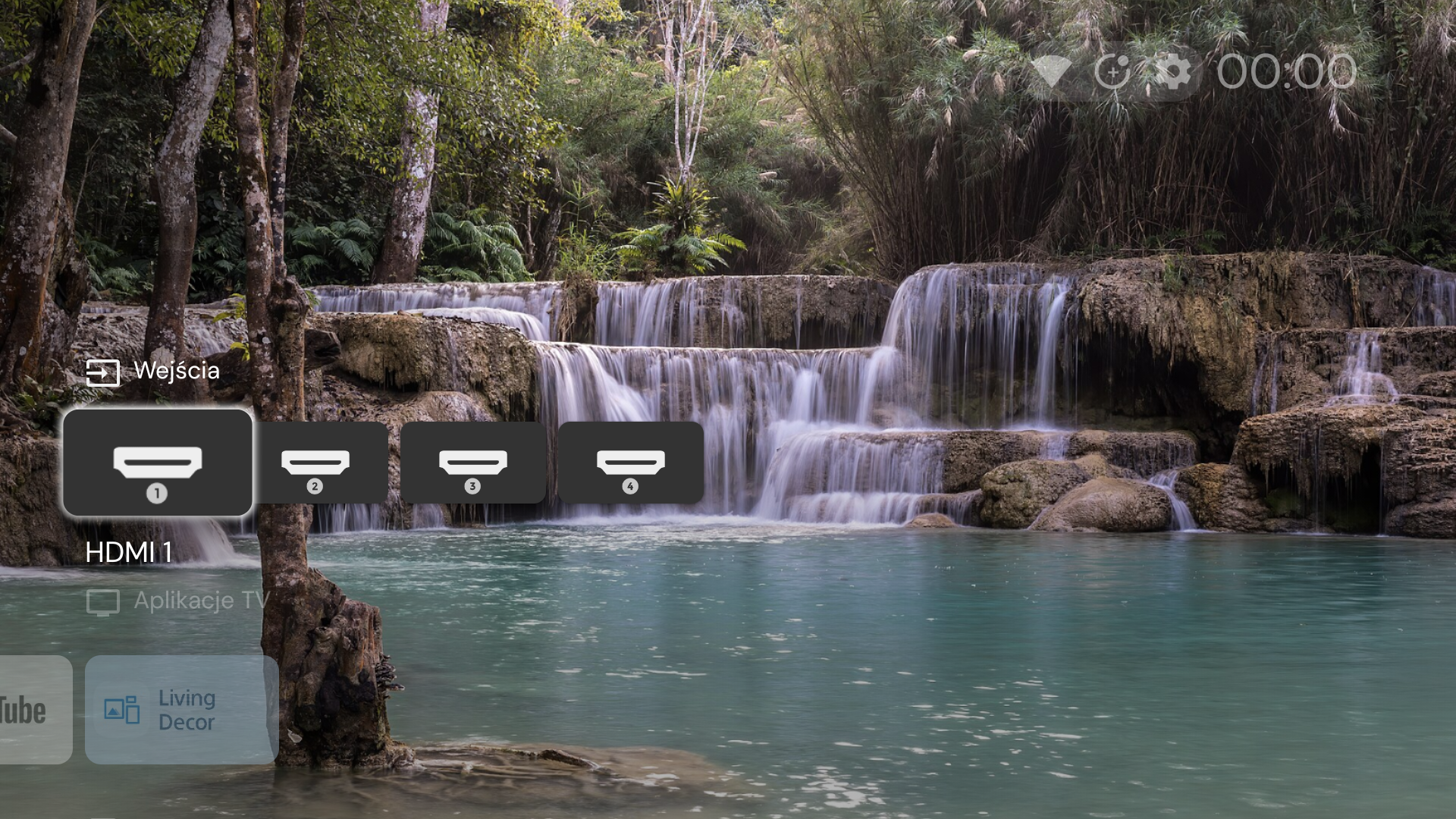
A living room TV is a relaxation centerpiece, not a server operations center monitor. Even with tasteful styling, having temperature graphs and CO₂ gauges permanently occupying the top half of the screen created visual clutter and cognitive overhead. When someone sits down to watch a movie or switch over to a console, they want a serene, uncluttered interface that gets out of the way instantly.
So we made a decisive product iteration: 1. Stripped the persistent overlay: We removed HeatingOverlayService and BootReceiver from AndroidManifest.xml and revoked SYSTEM_ALERT_WINDOW. 2. Embraced pure Projectivy Launcher: Kept Projectivy 100% full-screen as the primary launcher on the 65" OLED, with clean rows for HDMI inputs and essential TV apps. 3. Preserved the Omarchy OLED Screensaver: Kept OmarchyDreamService as the active screensaver for burn-in protection and late-night aesthetic ambience. 4. Standalone Home Assistant Tile: Kept HeatingActivity accessible via the HA Heating & Omarchy app icon in Projectivy's app row. Whenever anyone actually wants to inspect room temperatures or air quality, one click opens the full-screen dashboard with full D-pad scrolling; pressing Back returns immediately to a pristine home screen.
The living room felt calm again.
Scaling Across the House: Surgical Debloat on the 55" Bravia (XR-55A80L)
With our 42-package debloat manifest proven on the 65-inch set (192.168.1.58), we turned to the second OLED on our LAN: the 55-inch Sony Bravia XR-55A80L (192.168.1.19:5555).
Here, our UX requirements were intentionally different: - Keep the stock Google TV launcher untouched: No Projectivy Launcher, no companion APK, and zero UI changes. Other family members shouldn't have to relearn launcher navigation or lose their familiar interface. - Execute the same surgical debloat: Strip all ACR frame-grabbers, Qterics telemetry, retail demo modes, and unused streaming bloatware under the hood while preserving stock stability.
Cost-Optimized Agentic Workflow with flash Subagents
In modern agentic development, using top-tier frontier models for repetitive shell commands is an expensive anti-pattern. Pulling APK bundles, executing batch uninstalls, and verifying device properties don't require heavy reasoning—they require strict discipline and safety guardrails.
We leveraged Antigravity's subagent architecture, dispatching cost-optimized flash subagents with strict constraints: - Pass -s 192.168.1.19:5555 on every single command (never cross-talk with the 65" set). - NEVER disable or uninstall com.google.android.tungsten.setupwraith or com.google.android.apps.tv.launcherx. - Execute a complete backup snapshot before removing anything.
The subagent workflow executed flawlessly in two discrete stages:
- Task 1: Full Backup Snapshot &
restore.shGeneration - Dumped package manifests (
all_packages_with_paths.txt,enabled_packages.txt,disabled_packages.txt,system_packages.txt,device_props.txt). - Pulled ~308 MB of split APKs across the user-installed streaming apps (
Disney+,Max,Canal+,TVP VOD,Crunchyroll). - Generated an executable
restore.shfor one-command rollback. - Task 2: Surgical 42-Package Removal & Verification
- Executed
pm uninstall --user 0across all 42 packages (42/42 Success). - Verified that
0/42bloat packages remained on User 0. - Asserted that
setupwraithandlauncherxremained fully active, with network latency to8.8.8.8clocking in at9.8 msRTT with0%packet loss.
Across both OLEDs, we reclaimed more than 750 MB of flash storage, eliminated every ACR frame-grabber, and stopped continuous telemetry—all while preserving full rollback backups on disk.
The Terminal Pairing Workflow
Just like during our 64-bit Raspberry Pi 5 migration, this entire overhaul was orchestrated directly from the terminal with an agentic pair-engineer (AGY).
Having an AI agent connected via ADB to the televisions and SSH to the local homelab host creates an insanely productive development loop: - Instant Package Analysis: Auditing 200+ Android TV packages, cross-referencing permissions, and identifying bloatware dependencies took seconds instead of hours of manual grepping. - Rapid Compilation & Deployment: Modifying the Java companion code, recompiling with javac and d8, packaging with aapt2, signing with apksigner, and deploying to the TV happened in single sub-minute cycles. - Immediate Recovery During the Network Brick: When setupwraith triggered the Ethernet dropout, having immediate terminal visibility into the exact package state allowed us to restore the provisioning manager before the TV dropped permanently offline. - Hierarchical Cost Optimization: Orchestrating complex architectural decisions with the primary agent while delegating routine multi-device backup and debloat pipelines to flash subagents maximized speed while minimizing token costs.
The Payoff: Two TVs That Respect Their Owners
Step back and look at the transformation across both sets:
| Feature | Stock Sony Bravia Google TV | 65" OLED (XR-65A80L) |
55" OLED (XR-55A80L) |
|---|---|---|---|
| Home Screen Ads | 80% screen area (trailers, sponsored banners) | 0% (Full-Screen Projectivy) | Stock Google TV (Bloatware removed) |
| Telemetry & ACR | Samba TV pixel sampling, Qterics, Sony DA | Completely Removed | Completely Removed |
| B2B / Hotel Bloat | 14 packages, 5 embedded Node.js runtimes | Zero | Zero |
| Home Assistant Access | None (stranded in browser tabs) | Dedicated App Tile + Full D-Pad Navigation | None (Stock UI preserved) |
| Idle State | Generic Google backdrop slideshow | Pure #000000 OLED Omarchy Screensaver |
Stock Ambient Mode |
| Remote Navigation | Sluggish, ad-heavy D-pad lag | Instant, hardware-accelerated response | Noticeably faster, less background load |
| Reclaimed Storage | Baseline | ~450 MB | ~308 MB |
We spend countless hours securing our servers, auditing container capabilities, and self-hosting our data. But too often, we give a free pass to the largest, brightest, most microphone-equipped computers in our homes.
Whether you go all-in with a custom launcher and OLED terminal screensaver or surgically strip telemetry under the hood while preserving stock navigation, taking control of your televisions is one of the most rewarding afternoon projects you can tackle.
Your OLED panels deserve better than being treated like billboards.
Member discussion